Task Manager
Task Manager is a built-in tool on your computer that shows you everything running on your system.
It displays which programs and background processes are active, how much memory and processing power they are using, and lets you force-close anything that is stuck or misbehaving. On Windows, you open it with Ctrl+Shift+Esc. On Mac, the equivalent is called Activity Monitor.
What it looks like
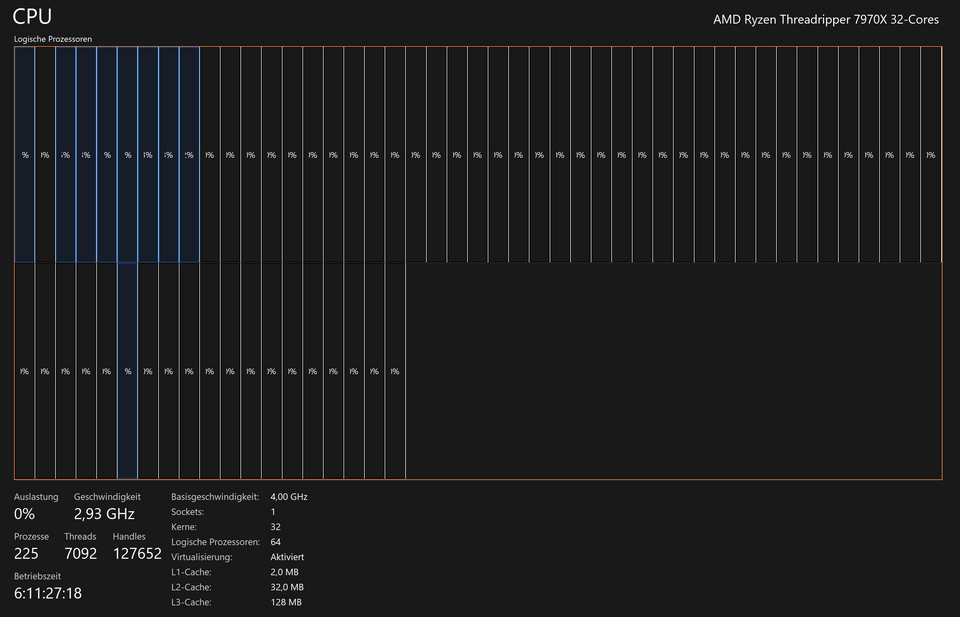
Task Manager, explained at three levels
At home
Task Manager is like a dashboard for your computer. It shows you every program running, even the invisible ones working in the background. If a program freezes or your computer feels slow, you can open Task Manager to see what is using the most resources and close it. It is one of the most useful troubleshooting tools built right into your computer.
At work
In a business environment, Task Manager is a first-line diagnostic tool for troubleshooting performance issues. When an employee reports that their computer is slow, checking Task Manager reveals which applications are consuming the most CPU, memory, or disk activity. IT support teams often walk users through Task Manager as a first step before escalating issues. It also shows startup programs that may be slowing down boot times.
At home
Task Manager displays real-time data about processes, CPU utilization, memory usage, disk activity, and network throughput. Each process has a process ID and can be associated with a parent process. The details tab shows thread counts, handle counts, and per-process resource consumption. On Windows, the startup tab lets you enable or disable programs that launch automatically when the computer starts.
At work
IT administrators use Task Manager data to identify resource-intensive applications that may need optimization or replacement. Remote monitoring tools extend Task Manager-like visibility across an entire fleet of devices. Understanding process hierarchies helps troubleshoot issues where a crashed parent process leaves orphaned child processes consuming resources. Performance baselines established through Task Manager observations help detect anomalies early.
At home
Under the hood, Task Manager interfaces with the operating system's process scheduler and kernel to retrieve real-time telemetry. On Windows, it reads from the Windows Management Instrumentation subsystem and performance counters. Process priority levels — from real-time to idle — determine how the scheduler allocates CPU time. Advanced users can use command-line tools like tasklist, Get-Process in PowerShell, or top and htop on Linux for more granular process management.
At work
Enterprise environments supplement Task Manager with centralized monitoring solutions like SCOM, Datadog, or Prometheus that aggregate process-level metrics across thousands of endpoints. Application performance management tools provide code-level insights that go beyond what Task Manager shows. Capacity planning uses historical process data to forecast hardware needs and optimize resource allocation. Automated remediation systems can restart failed services or kill runaway processes without human intervention.
Real-world examples
At home
Grace is working on her laptop when her web browser freezes and she cannot close it normally. She presses Ctrl+Shift+Esc to open Task Manager, finds the browser in the list, and clicks 'End Task.' The frozen browser closes, and she can reopen it and continue working without restarting her entire computer.
At work
Omar from IT support receives a ticket from an employee complaining about a sluggish laptop. He asks the employee to open Task Manager and share a screenshot. Omar spots a backup utility consuming 95 percent of the CPU and walks the employee through ending the process. He then reschedules the backup to run after business hours.
Common confusions
- A frequent misconception is that Task Manager is only for fixing frozen programs. It is also useful for monitoring performance, managing startup programs, and understanding resource usage.
- It's a common myth that ending a task in Task Manager is the same as properly closing a program. Ending a task forces the program to stop immediately, which may cause unsaved work to be lost.
- One common misunderstanding is that normal users should never need Task Manager. It is a helpful everyday tool for understanding why your computer might be running slowly.
For analysts
Task Manager is surprisingly useful during software evaluation. When testing a new tool, open Task Manager to observe its resource consumption under normal use. If a candidate application consumes excessive memory or CPU during basic operations, that is a red flag for scalability. Include resource usage benchmarks in your evaluation criteria — what looks fine on one test machine may cause problems when deployed to hundreds of devices.
History & origin
The Windows Task Manager was introduced with Windows NT 3.1 in 1993, giving users visibility into running processes for the first time on that platform. Early versions were simple process lists, but the tool evolved over the decades to include performance graphs, startup management, and service monitoring. On macOS, Activity Monitor has provided similar functionality since the early days of Mac OS X in 2001.