Background App / Process
A background app or process is software that runs on your device without being visible on your screen.
These processes handle tasks like checking for new emails, syncing files, or running antivirus scans. You do not interact with them directly, but they keep things running smoothly behind the scenes. Too many background processes can slow your device down.
What it looks like
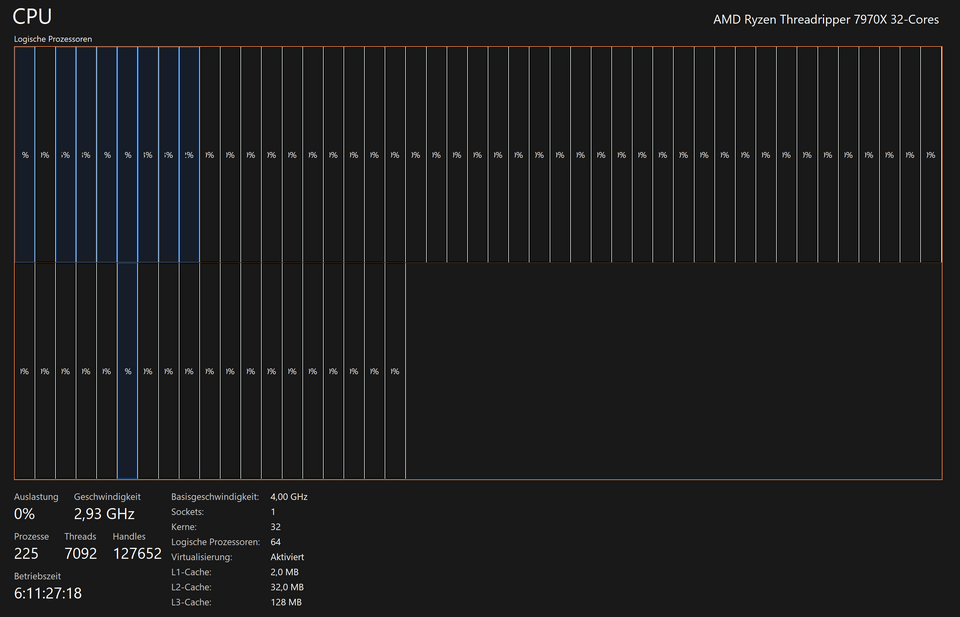
Background App / Process, explained at three levels
At home
Background apps are programs that keep working even when you are not looking at them. For example, your email app checks for new messages while you browse the web, and your music app keeps playing songs while you use a different app. These background tasks are helpful, but too many of them running at once can make your device slower. You can usually check and manage them through your device's settings.
At work
In the workplace, background processes handle essential functions like email synchronization, file backups, and security scanning. IT departments configure background services to run antivirus updates, push software patches, and sync company data. Understanding background processes helps employees troubleshoot slow performance — if a device is sluggish, too many background tasks may be consuming resources. Managed devices often have background processes controlled by IT policies.
At home
Background processes operate in system memory without a visible user interface. Operating systems assign CPU time and memory to each process based on priority levels. System services, scheduled tasks, and daemon processes all run in the background. Mobile operating systems are more aggressive about suspending background apps to preserve battery life, while desktop systems allow more background freedom.
At work
Enterprise IT environments rely heavily on background services for infrastructure operations including monitoring agents, patch management clients, and endpoint detection and response tools. Background process management is critical for maintaining system performance — runaway processes can consume excessive CPU or memory, affecting user productivity. Group policies and mobile device management profiles define which background services run on managed devices.
At home
At a technical level, background processes can be implemented as system services, daemon processes, worker threads, or scheduled jobs. Operating systems provide APIs for registering background tasks with constraints like network availability or charging status. On mobile platforms, background execution is limited by the OS to conserve battery — developers must use platform-specific mechanisms like background fetch, push notifications, or workload schedulers. Process isolation through containers or sandboxing prevents background processes from interfering with each other.
At work
In large-scale environments, background process optimization directly impacts infrastructure costs and user experience. Observability tools track process resource consumption, enabling capacity planning and anomaly detection. Container orchestration platforms manage background workloads across distributed systems with automated scaling. Organizations implement process governance frameworks that define approval workflows for deploying new background services, ensuring they meet performance and security standards.
Real-world examples
At home
Ahmed notices his phone battery draining faster than usual. He checks his settings and discovers that a social media app has been running in the background, constantly refreshing his feed. After disabling background activity for that app, his battery life improves noticeably throughout the day.
At work
Jessica, a systems administrator, receives complaints that employee laptops are running slowly every Tuesday morning. She investigates and finds that antivirus scans and software update downloads are both scheduled to run in the background at the same time. She staggers the schedules, and performance improves immediately.
Common confusions
- A frequent misconception is that closing a window stops all of an app's processes. Many apps continue running background processes even after you close their window.
- It's a common myth that background processes are harmful. Most are essential for your device to function properly, like system updates and security scans.
- You might think phones do not run background processes. Smartphones run many background tasks including notifications, location services, and data syncing.
For analysts
When users report performance issues, background processes are often the hidden culprit. During requirements gathering for any new tool, ask about its background resource usage — will it run background sync, telemetry, or auto-updates? If you are deploying software to hundreds of machines, a background process that uses modest resources on one device can create significant aggregate load. Factor this into your performance requirements and testing plans.
History & origin
Background processing became possible with the development of multitasking operating systems in the 1960s and 1970s. Early personal computers could only run one program at a time, but systems like Unix introduced the ability to handle multiple processes simultaneously. Modern operating systems manage dozens or even hundreds of background processes automatically, keeping your device functional without requiring your attention.