System Tray / Menu Bar
The system tray is the small area in the bottom-right corner of a Windows screen that shows tiny icons for background programs like antivirus, Wi-Fi, and volume controls.
On a Mac, the equivalent is the right side of the menu bar at the top of the screen. These icons give you quick access to settings and tools without opening full applications. They are your shortcut to managing things running quietly in the background.
What it looks like
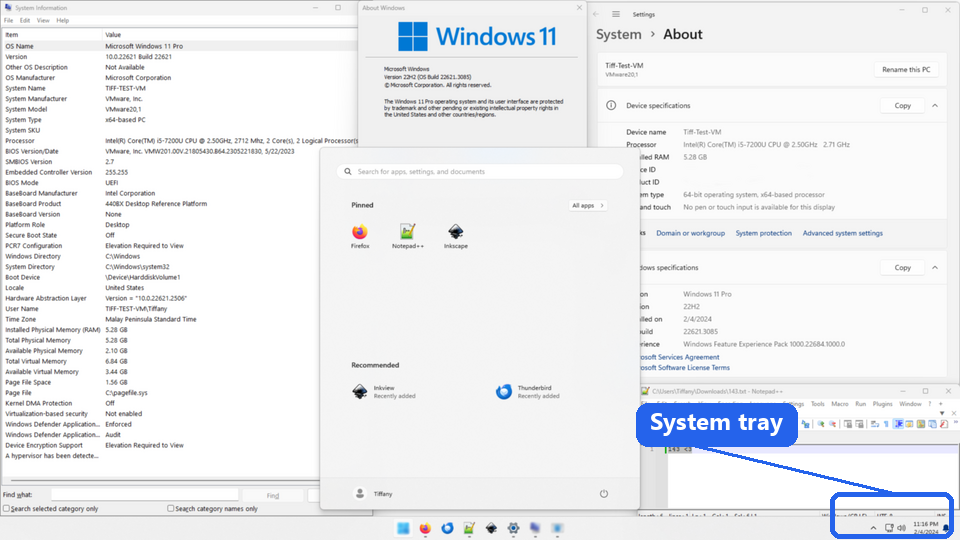
System Tray / Menu Bar, explained at three levels
At home
The system tray is the little row of icons in the corner of your screen. You will find things like your Wi-Fi connection, sound volume, battery level, and clock there. Clicking these icons lets you quickly change settings or see notifications without opening a full program. On a Mac, these icons sit along the top-right of the menu bar instead of the bottom-right.
At work
In a work setting, the system tray and menu bar host important business tools like VPN clients, messaging indicators, and security software status. Employees can quickly check their connection status, access corporate tools, and view notifications from a glance. IT departments often deploy management agents that appear in the system tray for easy access. Training new employees on these icons helps them stay productive from day one.
At home
The system tray and menu bar are managed by the operating system's shell, which allocates space for registered application icons. Applications use system APIs to create tray icons, display tooltip text, and show context menus on right-click. Notification badges and pop-up alerts originate from these tray applications. On macOS, menu bar extras can be built as standalone apps or as status items within a larger application.
At work
In enterprise environments, the system tray is a common integration point for endpoint management tools, including antivirus status, VPN connectivity, and IT support shortcuts. Group policies can control which system tray icons are visible, preventing clutter or restricting access to certain settings. Standardizing the system tray experience across the organization helps IT support troubleshoot more efficiently, since every machine shows the same set of tools.
At home
Technically, Windows system tray icons are implemented through the Shell_NotifyIcon API, which allows applications to register icons, respond to mouse events, and display balloon notifications. Modern Windows versions introduced the notification area overflow to prevent tray clutter. On macOS, NSStatusItem provides similar functionality for creating menu bar extras. Custom menu bar applications can use frameworks like SwiftUI or AppKit to build rich interactive menus.
At work
At scale, managing system tray and menu bar applications across an organization involves balancing user convenience with security and performance. Too many tray applications competing for memory and startup time can degrade the user experience. Application packaging and deployment tools should include configuration for tray icon behaviour: whether an app starts minimized to tray, shows notifications, or runs silently. User experience standards should define which tray applications are mandatory and which are optional.
Real-world examples
At home
Thomas glances at the system tray in the corner of his Windows laptop and notices the Wi-Fi icon shows a warning symbol. He clicks it and sees that his internet connection has dropped. He reconnects from the menu that pops up without needing to open any settings application.
At work
Nadia, working remotely, notices a small shield icon in her system tray has turned red. She clicks it and sees that her company VPN has disconnected. She reconnects with one click from the tray menu, restoring access to internal company resources without calling IT support.
Common confusions
- One common misunderstanding is that system tray icons are just decorations. They represent running programs or system services that you can interact with.
- It's a popular misconception that removing an icon from the system tray closes the program. Hiding the icon usually just hides the visual indicator while the program continues running.
- You might think the system tray and the taskbar are the same thing. The taskbar shows open applications, while the system tray shows background services and system controls.
For analysts
When documenting user workflows or creating training materials, do not overlook the system tray. Users often interact with critical tools through tray icons without realizing it: VPN clients, screen sharing indicators, and messaging apps all live there. Include system tray interactions in your process documentation and screenshots to give a complete picture of how employees actually work.
History & origin
The Windows system tray, officially called the notification area, was introduced with Windows 95 in 1995. It provided a standard location for background applications to display status icons and notifications. Apple's menu bar has been a core part of the Mac interface since the original Macintosh in 1984, with third-party menu bar extras becoming common in Mac OS X. Both have evolved to include more interactive elements and notification features.