Safe Mode
Safe Mode is a special way to start your computer that loads only the most essential programs and drivers.
It is a troubleshooting tool used when your computer is not working properly. By stripping away everything except the basics, Safe Mode helps you figure out whether a problem is caused by extra software, a bad driver, or something else. Think of it as your computer running with training wheels.
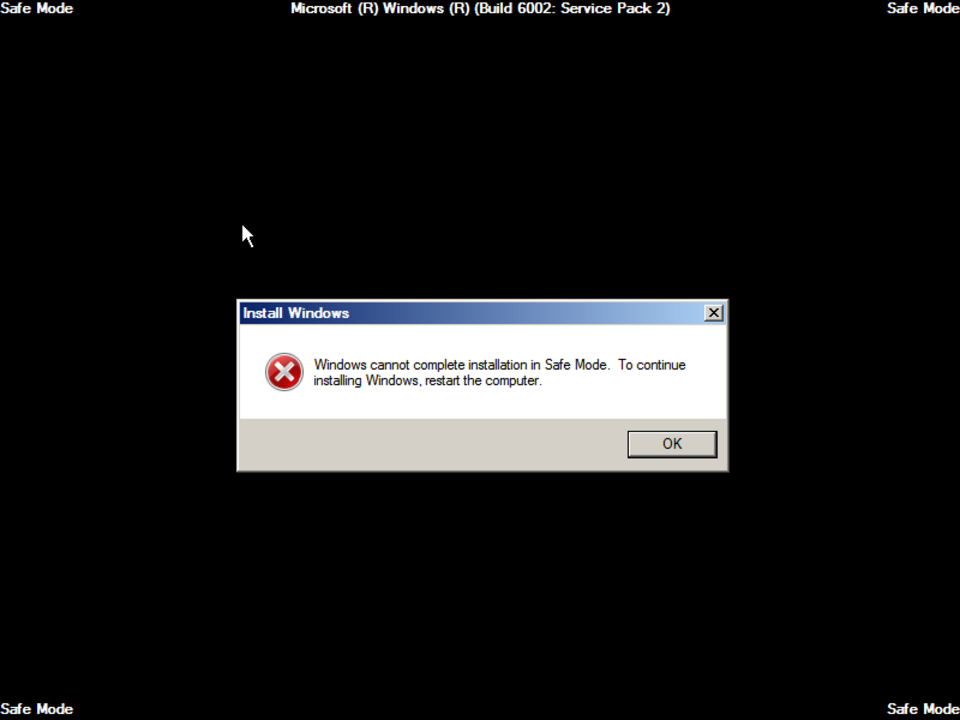
What it looks like
Safe Mode, explained at three levels
At home
Safe Mode is a stripped-down version of your computer that only loads the absolute basics needed to run. If your computer is acting up (maybe it will not start properly or a program is causing problems), Safe Mode lets you get in and fix things. It uses a basic display, disables most extra programs, and skips non-essential drivers. Once you identify and fix the problem, you restart normally.
At work
In a workplace, IT support teams use Safe Mode to diagnose and fix computers that will not boot normally or are behaving erratically. Safe Mode allows technicians to uninstall problematic software, update or roll back drivers, and run malware scans in an environment where the problematic components are not running. Knowing how to boot into Safe Mode is a valuable skill for anyone who manages their own computer.
At home
Safe Mode loads a minimal set of kernel-mode drivers, system services, and Microsoft's basic display driver. Network drivers are not loaded unless you specifically choose Safe Mode with Networking. Startup programs and third-party services are disabled. This controlled environment makes it possible to isolate whether a problem is caused by core system components or by additional software and drivers.
At work
Enterprise IT uses Safe Mode as part of structured troubleshooting procedures. Remote support is more challenging in Safe Mode since network connectivity may be limited. Technicians often need physical access or use Safe Mode with Networking for remote troubleshooting. BitLocker-encrypted drives may require a recovery key when booting into Safe Mode. Standardized troubleshooting runbooks that include Safe Mode procedures help support teams resolve issues consistently.
At home
Technically, Safe Mode is triggered by setting a specific boot configuration using bcdedit, msconfig, or by interrupting the normal boot sequence. The system reads the SafeBoot registry key to determine which drivers and services to load. Safe Mode configurations include Minimal, Network, and Active Directory Repair for domain controllers. The Windows Recovery Environment provides access to Safe Mode when the normal boot path fails completely.
At work
At scale, the need for Safe Mode often signals deeper systemic issues that warrant proactive investigation. If multiple devices require Safe Mode intervention, root cause analysis should examine recent changes like driver updates, OS patches, or Group Policy modifications. Automated remediation tools that run in Windows Recovery Environment can resolve common issues without manual Safe Mode intervention. Organizations with mature endpoint management rarely need Safe Mode because they catch and resolve driver and software conflicts before they cause boot failures.
Real-world examples
At home
Fatima's laptop starts showing strange errors and running extremely slowly after she installs a free game. She holds Shift while clicking Restart, then picks Safe Mode from the Startup Settings menu. In Safe Mode, she uninstalls the suspicious game. After restarting normally, her laptop works perfectly again.
At work
Jerome, a help desk technician, receives a ticket for a laptop that keeps restarting in a loop after a driver update. He boots the machine into Safe Mode, rolls back the problematic driver to the previous version, and restarts normally. The laptop boots up fine, and he documents the incompatible driver version in the team's knowledge base.
Common confusions
- Many people assume Safe Mode fixes problems automatically. Safe Mode just creates a clean environment where you can identify and fix the problem yourself.
- It's easy to assume you should use Safe Mode regularly. Safe Mode is a troubleshooting tool meant for when things go wrong, not for everyday use.
- A lot of people believe Safe Mode looks broken because the screen looks different. The low resolution and basic graphics in Safe Mode are normal and intentional to ensure compatibility.
For analysts
If your project involves deploying software that installs drivers or system-level components, include Safe Mode recovery instructions in your deployment documentation. If something goes wrong, support teams need to know exactly how to undo the change in Safe Mode. Test your software's installation and uninstallation in Safe Mode during QA to ensure it can be cleanly removed even when the system is not booting normally.
History & origin
Safe Mode was introduced by Microsoft in Windows 95, providing a minimal boot environment for troubleshooting. Before Safe Mode, users had to use command-line tools and boot disks to diagnose startup problems. Apple's macOS has an equivalent called Safe Boot, and Linux systems can boot into single-user or rescue mode for similar purposes. Safe Mode has been a staple troubleshooting tool for over 30 years.