Autosave
Autosave is a feature that automatically saves your work at regular intervals without you having to do anything.
If your computer crashes or you forget to save, autosave means you will not lose everything. Many modern applications save your changes continuously in the background. It is like having a safety net that catches your work every few seconds or minutes.
What it looks like
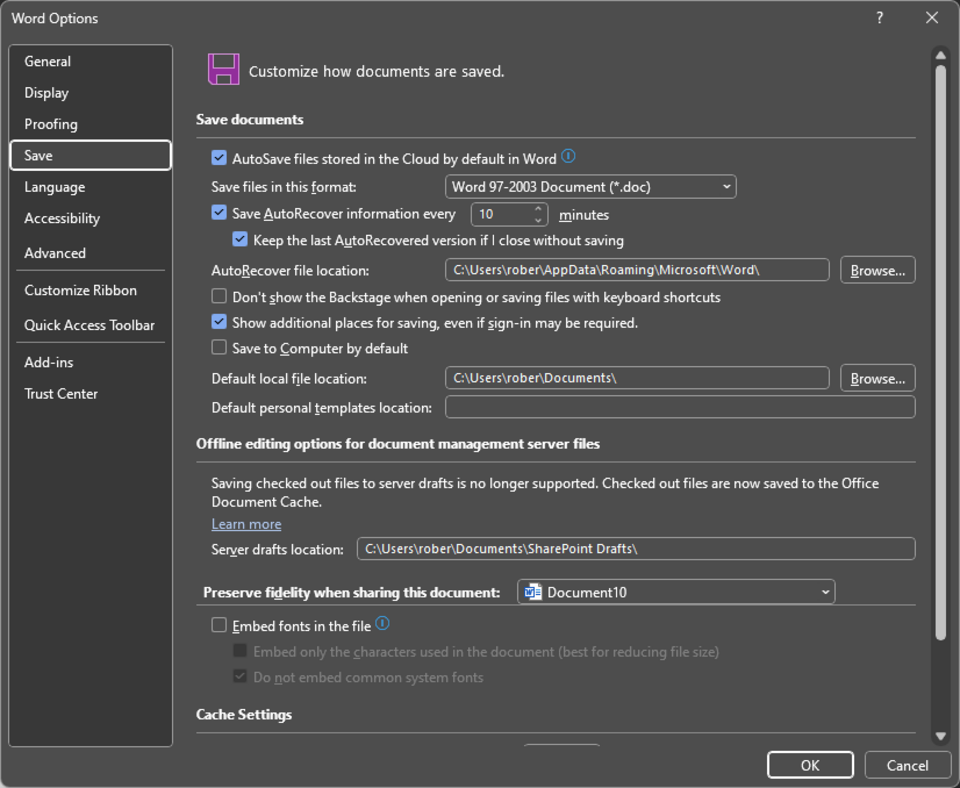
Autosave, explained at three levels
At home
Autosave is like a guardian angel for your work. Instead of relying on you to remember to hit save, the program does it for you automatically. If your computer suddenly shuts off or an app crashes, autosave means your latest changes are preserved. Many apps like Google Docs save your work in real time, so you never have to worry about it. Others save at regular intervals, like every five minutes.
At work
In a business environment, autosave reduces the risk of data loss from crashes, power failures, or user error. Cloud-based tools with continuous autosave, like Microsoft 365 and Google Workspace, have made manual saving nearly obsolete for many workflows. IT departments should ensure that autosave settings are properly configured on all managed devices. For applications that do not autosave by default, enabling the feature or setting shorter save intervals is a quick win.
At home
Autosave implementations vary from periodic file saves to continuous change streaming. Traditional autosave writes a recovery file at configured intervals, separate from the main file. Cloud-based autosave synchronizes changes to the server in near real time through incremental updates. Some applications combine local autosave with cloud sync, providing protection against both application crashes and device failures.
At work
Enterprise autosave strategy intersects with version control, data governance, and disaster recovery. Organizations must understand how autosave interacts with shared files to prevent conflicts in collaborative environments. Retention policies for autosaved versions help manage storage costs while maintaining compliance. In regulated industries, autosaved drafts may need to be treated differently from published documents for audit purposes.
At home
Technically, autosave can be implemented through periodic file writes, journaling, write-ahead logging, or operational transformation for collaborative editing. The challenge is balancing save frequency against performance impact: saving too often can cause noticeable lag, while saving too infrequently risks data loss. Crash recovery mechanisms use autosaved data to reconstruct the last known good state. Conflict resolution algorithms handle situations where multiple autosave streams converge on the same document.
At work
At scale, autosave infrastructure must handle high-frequency write operations across thousands of concurrent users. Cloud document platforms use eventual consistency models with conflict resolution to manage simultaneous edits. Storage optimization techniques like delta encoding reduce the overhead of saving every change. Organizations with strict data residency requirements must ensure that autosaved data respects geographic boundaries, even when users are working offline and syncing later.
Real-world examples
At home
Marcus spends an hour writing a blog post in Google Docs when the power suddenly goes out. When he gets back online, he opens the document and finds that every word he typed is still there: Google Docs had been autosaving his work the entire time. He does not lose a single sentence.
At work
Aisha, a project coordinator, is writing a lengthy proposal in Microsoft Word when her laptop battery dies unexpectedly. When she restarts, Word offers to recover her autosaved version, which includes everything she wrote up to one minute before the shutdown. The autosave feature saved her from losing three hours of work.
Common confusions
- It's often assumed that autosave means you never need to save. It is still good practice to manually save important documents, especially if you are unsure whether autosave is enabled.
- There's a widespread belief that autosave and backups are the same. Autosave protects against unsaved changes during a session, while backups protect against file loss or corruption over time.
- Some people are convinced that autosave uses a lot of storage. Modern autosave systems save changes incrementally, using very little additional space.
For analysts
When defining requirements for applications that handle important data, specify the autosave behaviour explicitly. How often should autosave trigger? Where is the autosaved data stored? What happens during a crash recovery? If your application involves collaborative editing, clarify how autosave interacts with concurrent users. These details prevent data loss complaints and give users confidence in the system.
History & origin
Early computer programs had no autosave, meaning a crash or power outage could wipe out hours of work. Autosave features began appearing in word processors and spreadsheets in the 1990s, initially saving recovery files at set intervals. The rise of cloud-based applications like Google Docs in the late 2000s introduced continuous autosave, where every keystroke is saved in real time. Today, autosave is a standard expectation in most productivity software.