Clipboard
The clipboard is an invisible holding area on your computer that temporarily stores anything you copy or cut.
When you press Ctrl+C to copy text, an image, or a file, it goes to the clipboard. When you press Ctrl+V to paste, the clipboard places that content wherever your cursor is. It is one of the most used features on any computer, even if most people never think about it.
What it looks like
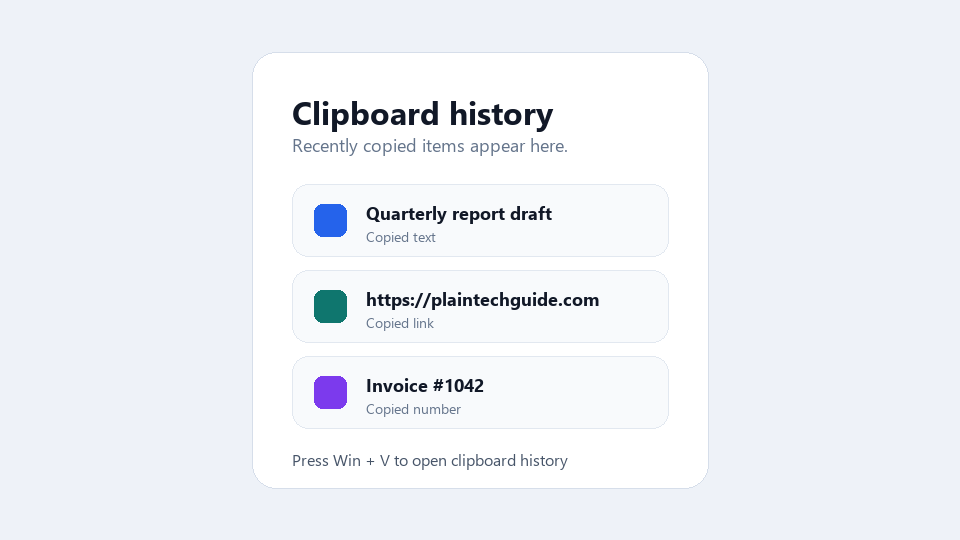
Clipboard, explained at three levels
At home
The clipboard is like an invisible pocket on your computer. When you copy something, it goes into this pocket. When you paste, it comes out of the pocket wherever you want it. The pocket only holds one thing at a time by default: if you copy something new, the old item is replaced. It works with text, images, files, and more, making it easy to move content around.
At work
In the workplace, the clipboard is essential for everyday tasks like moving data between documents, compiling reports, and transferring information between applications. Clipboard managers that store a history of copied items can boost productivity significantly. However, security-conscious organizations should be aware that sensitive data like passwords or confidential information can linger on the clipboard. Clear clipboard policies help protect sensitive information.
At home
The clipboard is managed by the operating system and uses a structured data format system. When you copy content, the source application places the data on the clipboard in multiple formats: for example, rich text, plain text, and HTML simultaneously. The receiving application picks the format it can best use when you paste. Modern systems support clipboard history, allowing you to access previously copied items.
At work
Enterprise clipboard management considers both productivity and data loss prevention. DLP solutions can monitor clipboard activity to prevent copying sensitive data outside approved applications. Cloud clipboard synchronization, such as Windows clipboard history syncing across devices, requires careful evaluation in security-sensitive environments. Virtual desktop and remote session environments add complexity, as clipboard data may cross network boundaries.
At home
Technically, the clipboard operates through system APIs like the Windows Clipboard API or macOS NSPasteboard. Applications register clipboard formats using standard identifiers or custom formats. The clipboard supports delayed rendering, where data is generated only when a paste operation requests it. Web applications access the clipboard through the Clipboard API, which requires explicit user permission for reading clipboard contents to prevent data theft.
At work
At the enterprise architecture level, clipboard behaviour intersects with data governance, endpoint security, and virtual desktop infrastructure. Organizations deploying remote desktop or virtual desktop solutions must define clipboard redirection policies: whether data can be copied between the virtual environment and local device. Browser-based DLP solutions can restrict clipboard operations on classified web applications. Clipboard audit logging is an emerging capability in security-focused environments.
Real-world examples
At home
Lena finds a recipe online that she wants to save. She selects the text, presses Ctrl+C to copy it to her clipboard, opens a document, and presses Ctrl+V to paste it. The recipe appears in her document, ready to print. The clipboard made the transfer seamless.
At work
Marcus, a recruiter, reviews resumes and compiles candidate summaries. He copies key details from each resume and pastes them into a tracking spreadsheet. Using Windows clipboard history, he can access the last several items he copied, which means he does not have to switch back and forth as often. This speeds up his workflow considerably.
Common confusions
- It's easy to assume the clipboard saves content permanently. It is temporary, and content is lost when you copy something new or restart your computer, unless you use clipboard history.
- Many people assume the clipboard only works with text. You can copy and paste images, files, formatted text, spreadsheet cells, and more.
- Some people are convinced that there is only one clipboard. Modern operating systems offer clipboard history that lets you access multiple previously copied items.
For analysts
Clipboard behaviour matters more than you might think in application design. If your users frequently copy data between systems, ensure your application supports pasting in multiple formats: plain text, rich text, and structured data. Also consider clipboard security: if your application handles sensitive data, consider clearing the clipboard after a set time or warning users about clipboard contents. These details make a real difference in user experience.
History & origin
The clipboard concept was pioneered at Xerox PARC in the 1970s as part of early graphical user interface research. Apple brought it to consumers with the original Macintosh in 1984, establishing the cut-copy-paste paradigm that Larry Tesler had helped develop. The basic concept has remained remarkably consistent for over 40 years, though modern operating systems have added features like clipboard history and cross-device syncing.